
Salesforce to Jira Case Escalation: A Step-by-Step Automation Guide
Manual case escalation from Salesforce to Jira costs support teams hours every week. This step-by-step guide compares three approaches — manual, connector-based, and AI agent — so you can pick the right automation strategy for your team.
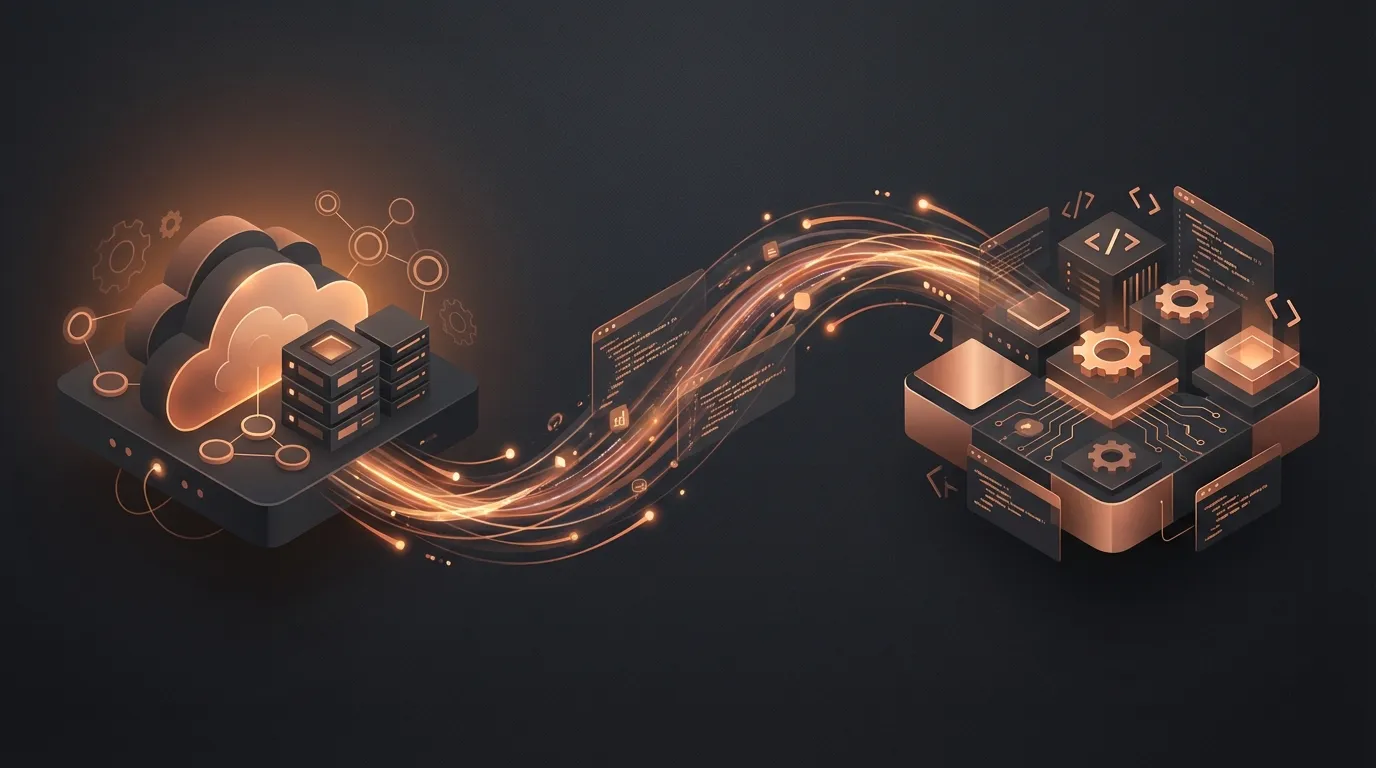
Quick Answer: Automating Salesforce-to-Jira case escalation requires mapping trigger conditions (case priority, category, SLA breach), defining the data fields to sync, and choosing between a native connector, iPaaS tool, or AI agent. Native connectors handle simple field mapping; iPaaS tools handle conditional logic; AI agents handle dynamic decision-making and can escalate based on sentiment, context, and learned patterns — not just static rules.
The Escalation Problem Nobody Talks About
Every support team that runs Salesforce and Jira hits the same wall. A customer reports a product bug through Salesforce Service Cloud. The support agent confirms it's a real issue — not a configuration mistake, not a known workaround. Now what?
The agent needs to create a Jira ticket. They switch tabs. They log into Jira (or hope they're still logged in). They find the right project. They fill in fields — summary, description, priority, component, labels, environment. They copy-paste the customer's description. They go back to Salesforce and grab the account name, contract tier, and case number. They paste those into the Jira ticket. They add internal notes. They hit create.
Then they go back to Salesforce. They update the case with the Jira ticket number. They add an internal comment noting that engineering has been notified. They change the case status. They send the customer an email saying the team is investigating.
That's one escalation. It takes 15–25 minutes when everything goes smoothly. Multiply that by the 30, 50, or 100+ escalations per week that mid-market and enterprise support teams handle, and you're staring at a full-time employee's worth of hours spent on what is essentially an elaborate copy-paste operation.
According to a 2026 analysis by Modern Marketing Partners, teams without Salesforce-Jira integration waste significant time across five key areas: duplicate data entry, status synchronization, context gathering, priority alignment, and resolution tracking. Exalate's integration research confirms that high-severity cases routinely sit in Salesforce queues while technical teams wait for manual escalation — turning minutes of delay into hours of customer frustration.
This guide breaks down three approaches to automating this process, step by step: manual with templates, connector-based, and AI agent-powered. By the end, you'll know exactly which approach fits your team's complexity, budget, and growth trajectory.
What "Case Escalation" Actually Means (And Why It's More Than Creating a Ticket)
Before diving into automation strategies, let's be precise about what case escalation involves. It's not just "create a Jira issue from a Salesforce case." That's the most visible step, but it's roughly 20% of the actual work.
A complete escalation workflow includes:
- Triage and qualification — determining whether the issue actually warrants engineering involvement
- Context enrichment — gathering customer details, account tier, contract status, reproduction steps, prior related tickets, and environment information
- Routing — sending the ticket to the correct Jira project, team, and component
- Priority calibration — setting priority based on technical severity AND business impact (a P3 bug for a customer renewing a $400K contract next month is functionally a P1)
- Ticket creation — the actual Jira issue, properly formatted with all the context engineering needs
- Bidirectional status sync — keeping Salesforce updated as the Jira issue progresses through engineering's workflow
- Customer communication — notifying the customer at each stage without making them ask for updates
- Resolution handoff — ensuring the fix reaches the customer and the case closes properly in both systems
Most "Salesforce to Jira integration" content focuses on steps 5 and 6. The other six steps are where teams actually spend their time — and where automation either succeeds or falls short.
Approach 1: Manual Escalation with Templates and Checklists
Best for: Teams handling fewer than 20 escalations per week with straightforward routing (one or two Jira projects, limited product complexity).
This approach won't win any awards for elegance, but it's free, it's fast to implement, and it works surprisingly well for small teams that need structure without overhead.
Step 1: Build an Escalation Template in Salesforce
Create a custom quick action on the Case object called "Escalate to Engineering." Configure it to prompt the agent for:
- Issue type (Bug, Feature Request, Performance Issue, Security Concern)
- Component (map to your Jira project components)
- Severity assessment (your team's severity scale, not the customer's)
- Reproduction steps (structured text field with environment, steps, expected vs. actual)
This standardizes input so agents don't forget critical details. Even without automation, structured data is faster to copy into Jira than freeform case notes.
Step 2: Create a Jira Issue Template
Use Jira's issue templates (available in Jira Cloud) or a pinned Confluence page that agents copy. The template should pre-fill:
- Standard labels (
customer-reported,escalation, severity level) - A description format that engineering actually reads (environment → steps → expected → actual → customer impact → account context)
- Default watchers (the support lead, the relevant engineering lead)
Step 3: Establish a Tracking Convention
Without integration, tracking is your biggest risk. Adopt a convention: put the Jira ticket key in a custom Salesforce field (Engineering_Ticket__c), and put the Salesforce case number in the Jira issue's "External Reference" field. This creates a manual bidirectional link.
Step 4: Set Up Salesforce Case Milestone Tracking
Use Salesforce Entitlement Processes to create milestones for escalated cases:
- Escalation acknowledged — Jira ticket created (target: 30 minutes)
- Engineering response — first update from engineering (target: 4 hours for P1, 24 hours for P2)
- Resolution provided — fix deployed or workaround delivered
Milestone violations trigger email alerts to the support lead, creating accountability without automation.
Step 5: Create a Daily Sync Ritual
Without system-level sync, you need a human ritual. A 15-minute daily standup where support and engineering review open escalations works for small teams. Use a shared Jira dashboard filtered to customer-reported labels.
Strengths of this approach: Zero cost, immediate implementation, builds team discipline.
Weaknesses: Doesn't scale past 20 escalations/week. Agents spend 15–25 minutes per escalation. Manual tracking breaks down under volume. No real-time status sync — customers wait for updates until a human remembers to check.
Approach 2: Connector-Based Automation
Best for: Teams handling 20–100 escalations per week with moderate routing complexity and budget for tooling ($500–$3,000/month depending on the connector).
Connectors like Sinergify, Exalate, Quantum Whisper, and Peeklogic automate the data bridge between Salesforce and Jira. They handle ticket creation, field mapping, and bidirectional sync — the plumbing of escalation. This is a significant upgrade from manual processes.
Step 1: Select and Install Your Connector
The connector market has matured considerably. Here's what to evaluate:
| Criteria | What to look for |
|---|---|
| Directionality | Bidirectional sync is table stakes. Ensure it supports real-time updates, not just periodic polling. |
| Field mapping depth | Can you map custom fields, multi-select picklists, and rich text? Some connectors struggle with Salesforce formula fields or Jira custom field contexts. |
| Trigger flexibility | Can you trigger escalation on case field changes (not just creation)? You need escalation when priority changes, when a specific case reason is selected, or when a custom checkbox is toggled. |
| Comment sync | Internal comments should stay internal. Public comments should flow. Most connectors support this; verify yours does. |
| Attachment handling | Screenshots and log files need to travel with the escalation. Some connectors cap attachment sizes. |
Sinergify (Salesforce-native, Grazitti Interactive) and Exalate (works across many platforms) are the market leaders. Workato and MuleSoft offer connector functionality within broader iPaaS platforms.
Step 2: Configure Your Field Mappings
This is where connector setups succeed or fail. Map these fields at minimum:
- Salesforce Case Priority → Jira Issue Priority (with transformation rules — Salesforce "High" may not equal Jira "High")
- Case Subject → Issue Summary (with a prefix:
[SF-{CaseNumber}] {Subject}) - Case Description + Internal Comments → Issue Description (formatted, not raw HTML dump)
- Account Name + Contact Name → Custom Jira fields (so engineering sees who's affected)
- Case Status ↔ Issue Status (bidirectional, with status mapping — Salesforce "Escalated" maps to Jira "To Do," Jira "In Progress" maps to Salesforce "Engineering Working")
Step 3: Build Escalation Triggers Using Salesforce Flows
Don't rely on manual button clicks alone. Create Salesforce Flows that automatically trigger escalation when:
- Case Priority is set to "Critical" or "High" AND Case Reason contains "Bug" or "Defect"
- A custom field
Escalate_to_Engineering__cis set to TRUE by the agent - The case has been open for more than 4 hours with no resolution AND matches product-related case types
These triggers call the connector's API to create the Jira issue with pre-mapped fields.
Step 4: Set Up Status Sync and Notifications
Configure bidirectional status sync with Jira webhooks. When the Jira issue moves to "In Review," the Salesforce case updates to "Fix in Progress." When Jira moves to "Done," the Salesforce case updates to "Resolution Provided."
Add Salesforce Process Builder or Flow automations to send customer email notifications at each status change. Template these emails — customers don't need to know about your internal systems. They need to know what's happening with their issue.
Step 5: Build Reporting Dashboards
With connector-level sync, you can finally build meaningful dashboards:
- Escalation volume by week/month — trending up or down?
- Mean time to escalation — how long does a case sit before reaching engineering?
- Mean time to resolution (measured from escalation to Jira "Done")
- SLA compliance rate — what percentage of escalated cases meet your response and resolution targets?
Build these in Salesforce Reports (since case data lives there) and complement with Jira dashboards for engineering-side metrics.
Strengths of this approach: Eliminates manual data entry (saves 10–20 minutes per escalation), provides real-time sync, enables meaningful reporting, works reliably at scale.
Weaknesses: Connectors handle data movement, not decision-making. They can't assess whether a case actually needs escalation. They can't route to the right Jira project based on the content of the case description. They can't adjust priority based on account value. They can't enrich the ticket with context from prior cases. Every decision that requires judgment still requires a human.
As we explored in our case routing deep-dive, the gap between "syncing fields" and "making intelligent routing decisions" is where most enterprise teams lose the most time. Connectors close the data gap. They leave the intelligence gap wide open.
Approach 3: AI Agent-Powered Escalation
Best for: Teams handling 50+ escalations per week, operating across multiple Jira projects or platforms, with complex routing logic and SLA commitments.
This is where SOP-driven AI agents change the game. Instead of automating the data bridge and leaving decisions to humans, an AI agent automates the entire escalation workflow — triage, context enrichment, routing, priority calibration, ticket creation, sync, and customer communication.
Step 1: Encode Your Escalation SOPs
Every support team has escalation procedures, even if they're not written down. They live in Confluence pages nobody reads, in tribal knowledge passed between senior agents, in Slack messages that say "just send those to the API team."
An SOP-driven AI agent makes these procedures executable. You document:
- When to escalate: "Escalate to engineering when the issue is confirmed as a product defect, not a configuration error, user error, or known issue with a documented workaround."
- How to classify: "API-related issues go to JIRA project API-ENG. Mobile app issues go to MOB-ENG. Payment processing issues go to PAY-ENG. If unclear, route to TRIAGE-ENG for engineering lead assessment."
- How to set priority: "Base priority on technical severity. Elevate one level if the account has ARR > $200K. Elevate two levels if the account has a renewal within 60 days. Elevate to P0 if the issue is a security vulnerability affecting customer data."
- What context to include: "Always include: customer environment, reproduction steps, error messages, account tier, open cases count, prior related tickets (search by component and error type)."
The agent reads these SOPs and follows them. When the SOPs change — and they always change — you update the document. No retraining, no redeployment, no six-week professional services engagement. Just edit the procedure.
Step 2: Connect the Agent to Both Platforms
Unlike a connector that just bridges two APIs, an AI agent needs read-write access to both Salesforce and Jira, plus the ability to query related data. The agent should be able to:
- Read Salesforce case details, account information, opportunity pipeline, and case history
- Search Jira for existing issues that match the current problem (preventing duplicates)
- Create Jira issues with full context and proper field values
- Update both systems as the escalation progresses
- Access your knowledge base to check for known issues before escalating
This is the setup that enables intelligent decision-making. The agent doesn't just move data from point A to point B — it gathers context from multiple sources and makes informed routing decisions.
Step 3: Let the Agent Handle Triage
Here's where AI agents diverge most dramatically from connectors. When a support agent (or a customer, through a self-service portal) flags a case for escalation, the AI agent:
- Reviews the case description, customer messages, and internal notes
- Checks the knowledge base for existing solutions or workarounds
- Searches Jira for duplicate or related open issues
- If a duplicate exists, links the Salesforce case to the existing Jira issue and notifies the customer that the team is already working on it
- If no duplicate exists, proceeds with escalation using the SOP-defined routing logic
This triage step alone can reduce unnecessary escalations by 20–35%, according to teams that have implemented AI-powered triage workflows. That's 20–35% fewer Jira tickets that engineering has to process — tickets that would have been duplicates, known issues, or configuration problems.
Step 4: Automate Context Enrichment
The worst thing you can send to an engineering team is a Jira ticket that says "Customer reports export button not working." The second worst thing is a ticket with a wall of raw HTML copied from a Salesforce case comment thread.
An AI agent creates structured, actionable Jira tickets by:
- Summarizing the customer issue in clear technical language (not the customer's exact words, which may use imprecise terminology)
- Extracting environment details from case data and prior interactions
- Pulling account context — ARR, contract renewal date, customer tier, executive sponsor — and placing it in a standardized "Business Impact" section
- Linking related Jira issues so engineering can see the broader pattern
- Attaching relevant files — screenshots, logs, configuration exports
Engineering teams report that well-structured escalation tickets reduce investigation time by 30–40% because developers don't have to hunt for context across two platforms.
Step 5: Monitor, Learn, and Improve
This is the step that separates AI agents from every other approach. A connector runs the same field mapping forever. An AI agent can identify patterns:
- "We've escalated 12 cases this month for the same API timeout error. Engineering might want to investigate this as a systemic issue."
- "Cases from accounts on the Enterprise plan are being routed to the wrong Jira project 15% of the time. The SOP needs a clarification for multi-product Enterprise accounts."
- "Average escalation-to-resolution time has increased from 18 hours to 32 hours over the past two weeks. Engineering capacity may be constrained."
These insights surface proactively, helping support and engineering leadership make better decisions about process, staffing, and product quality. This is what we mean by self-evolving agents — automation that doesn't just follow procedures but helps you improve them.
Strengths: Automates the full workflow including decisions. Reduces unnecessary escalations. Creates better tickets. Provides continuous improvement insights. Scales without adding headcount.
Weaknesses: Higher initial setup investment. Requires clearly documented SOPs (which is actually a benefit — it forces process clarity). Needs monitoring during the first few weeks to validate routing accuracy.
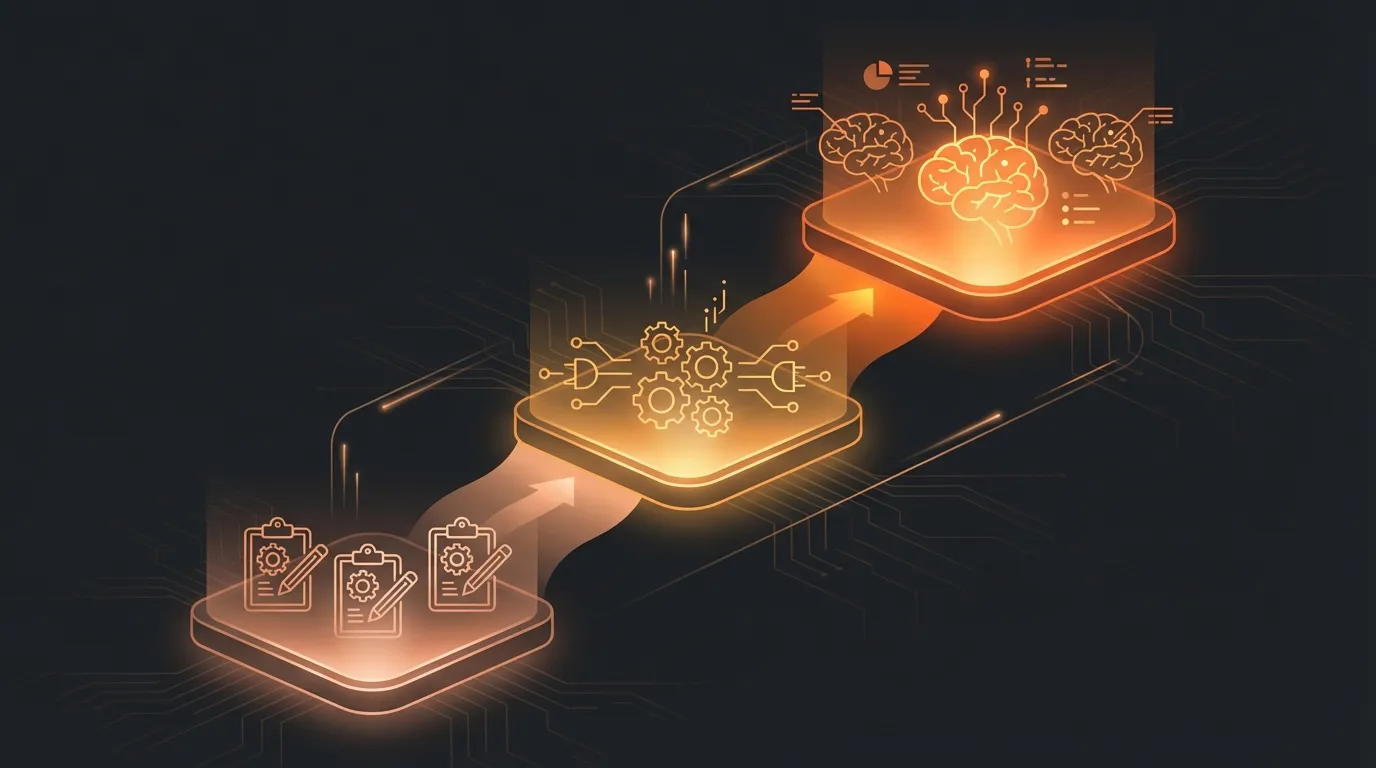
Side-by-Side Comparison: Which Approach Fits Your Team?
Here's a practical comparison across the dimensions that matter most:
Volume handling
- Manual: 1–20 escalations/week before it breaks down
- Connector: 20–500+ escalations/week with consistent performance
- AI Agent: 50–unlimited, with quality improving at higher volumes (more data → better pattern recognition)
Time per escalation
- Manual: 15–25 minutes of agent time
- Connector: 2–5 minutes (agent triggers, system handles the rest)
- AI Agent: Under 1 minute (agent reviews and approves, or fully automated based on confidence)
Routing intelligence
- Manual: Depends entirely on agent knowledge and judgment
- Connector: Rule-based (if-then field matching)
- AI Agent: Context-aware (reads case content, checks account data, follows SOPs)
Duplicate detection
- Manual: Agents check Jira manually (often skipped under time pressure)
- Connector: None — creates a new ticket every time
- AI Agent: Searches existing Jira issues and links duplicates automatically
Cost to operate (annually)
- Manual: $0 in tooling, $60K–$120K in hidden labor costs (equivalent of 0.5–1 FTE)
- Connector: $6K–$36K in licensing, plus reduced labor costs
- AI Agent: Platform subscription, but typically net-positive ROI within 3–6 months through labor savings and reduced escalation volume
Setup complexity
- Manual: Hours (templates and checklists)
- Connector: Days to weeks (field mapping, triggers, testing)
- AI Agent: Days (SOP documentation, platform connection, validation)
Common Pitfalls to Avoid
Regardless of which approach you choose, these mistakes will undermine your escalation workflow:
Pitfall 1: Treating every escalation as equal. Not all escalations deserve the same urgency. Build priority tiers into your process from day one. A cosmetic UI issue and a data corruption bug should not receive the same response time commitments.
Pitfall 2: Forgetting the customer communication loop. The most technically perfect Jira ticket is worthless if the customer sits in silence for three days wondering if anyone read their report. Automate status updates to the customer — even a simple "our engineering team is investigating" message within 30 minutes dramatically improves satisfaction scores.
Pitfall 3: Not tracking escalation metrics. If you can't answer "what's our average time from case creation to engineering acknowledgment?" then you can't improve. Measure from day one, even if the numbers are ugly.
Pitfall 4: Over-automating without validation. Whether you use a connector or an AI agent, start with human review. Let agents approve escalations for the first few weeks. Review routing accuracy weekly. Trust, then verify, then automate.
Pitfall 5: Ignoring the feedback loop. Engineering resolves the Jira issue but the customer's Salesforce case stays open because nobody closed the loop. This is the single most common failure mode in disconnected systems. Whatever approach you choose, the resolution handoff must be airtight.
The Real Question: Where Do You Want to Spend Your Team's Time?
Every approach described in this guide works. Manual processes work for small teams. Connectors work for teams that need reliable data sync. AI agents work for teams that need intelligent decision-making at scale.
The question isn't "which approach is best?" It's "where do you want your support team spending their cognitive energy?"
If your agents are spending 15–25 minutes per escalation on data entry and platform navigation, that's 15–25 minutes they're not spending on complex cases that actually require human judgment. If your engineering team is sorting through poorly-formatted Jira tickets to figure out what the customer actually reported, that's debugging time wasted on translation work.
The context switching cost isn't just the time spent switching tabs. It's the quality degradation that happens when skilled people do repetitive work that a system should handle.
Start where you are. If you're doing everything manually today, implement the template approach this week — it'll save hours immediately. If you have a connector but you're still making routing decisions manually, evaluate whether AI agents can close that gap. If you're already using AI agents, audit your SOPs and look for improvement patterns the agent has surfaced.
The escalation workflow is one of the highest-leverage processes in support operations. A 10% improvement in escalation efficiency compounds across every customer interaction, every engineering sprint, and every SLA commitment your company makes.
Ready to Stop Copying and Pasting Between Salesforce and Jira?
CorePiper's SOP-driven AI agents automate the full escalation workflow — from intelligent triage and duplicate detection to context-enriched ticket creation and bidirectional status sync. No six-month training period. No 20,000-ticket cold start. Your SOPs become executable on day one.
See how it works for your team. Book a 15-minute demo and bring your messiest escalation scenario. We'll show you exactly how CorePiper handles it — routing, enrichment, and all.